# Écran d'accueil

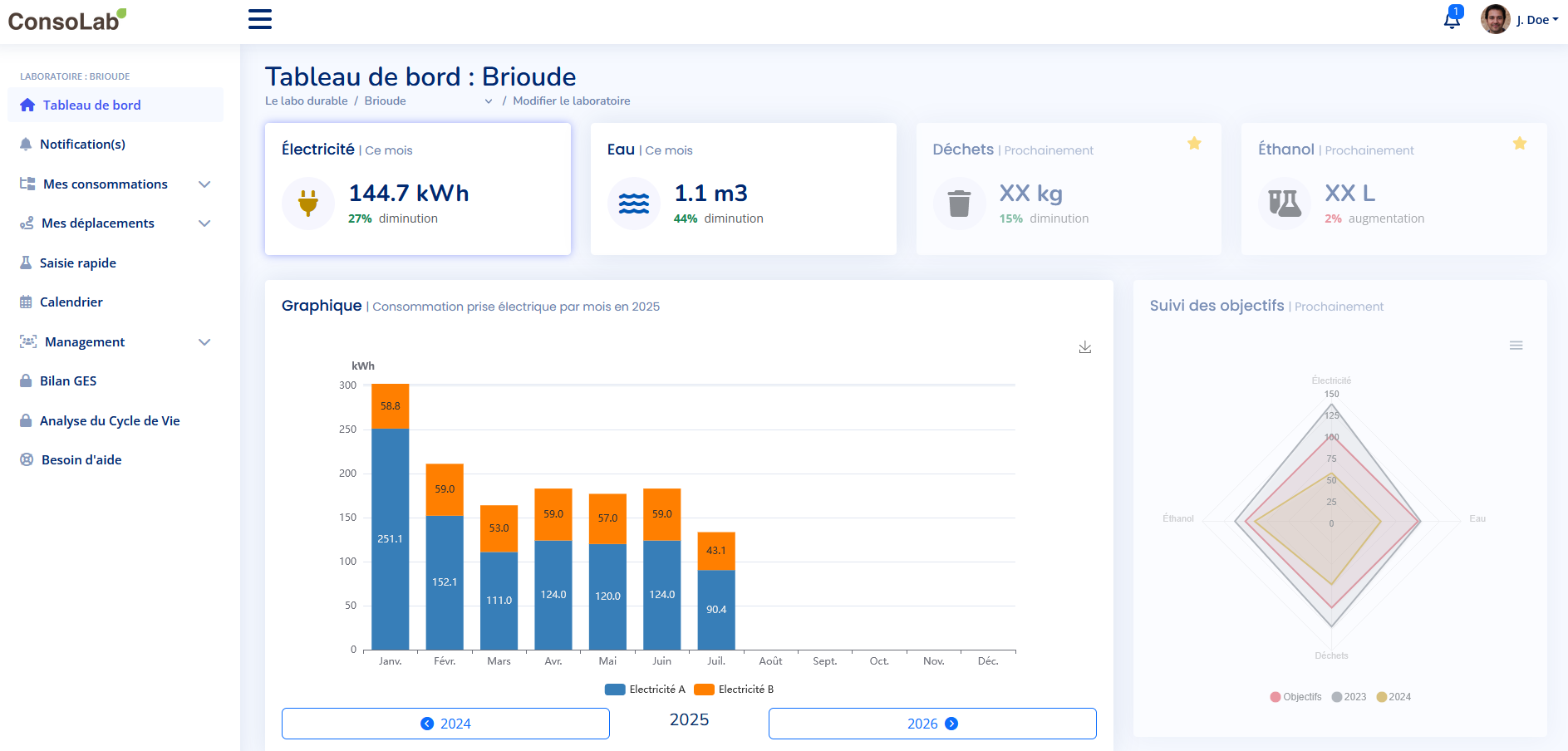
<span style="color: rgb(68, 68, 68);">En vous connectant sur Consolab, vous arrivez sur la page suivante :</span>

[![auHimage.png](https://wiki-lelabodurable.s3.amazonaws.com/uploads/images/gallery/2025-07/scaled-1680-/P5Aauhimage.png)](https://wiki-lelabodurable.s3.amazonaws.com/uploads/images/gallery/2025-07/P5Aauhimage.png)

<span style="color: rgb(68, 68, 68);">*<span style="font-family: Peak;">Figure </span><span style="mso-bookmark: _Ref186460268;"><span style="font-family: Peak;"><span style="mso-no-proof: yes;">1</span></span></span><span style="font-family: Peak;"> : Page d’accueil de Consolab 2.0 : Exemple de Tableau de bord avec des données annuelles</span>*</span>

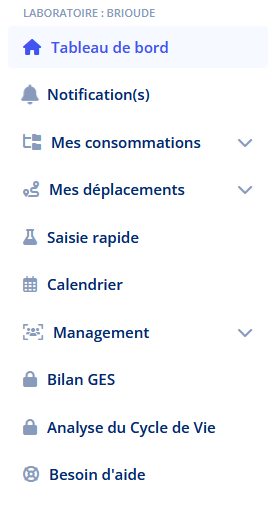
<span style="color: rgb(68, 68, 68);"><span style="font-family: Peak;">L’écran d’accueil présente un tableau de bord avec un menu de navigation latéral. Ce menu de navigation (à gauche, cf. </span><span style="font-family: Peak;">Figure <span style="mso-no-proof: yes;">2</span></span><span style="font-family: Peak;">) est organisé par catégories et permet d’accéder rapidement aux sections principales, comme : </span></span>

- <span style="color: rgb(68, 68, 68);">**<span style="font-family: Peak;">Tableau de bord</span>**<span style="font-family: Peak;"> : permet de suivre ses consommations en temps réel, qui sont rapportées à un objectif de consommation. </span></span>
- <span style="font-family: Peak; color: rgb(68, 68, 68);">**Notification(s) :** permet d'accéder aux alertes liées à un laboratoire.</span>
- <span style="color: rgb(68, 68, 68);">**<span style="font-family: Peak;">Afficher les devices</span>**<span style="font-family: Peak;"> : regroupe les prises électriques, compteurs d’électricité et d’eau.</span></span>
- <span style="color: rgb(68, 68, 68);">**<span style="font-family: Peak;">Déplacement</span>**<span style="font-family: Peak;"> : section dédiée au suivi des déplacements.</span></span>
- <span style="color: rgb(68, 68, 68);">**<span style="font-family: Peak;">Saisie rapide</span>**<span style="font-family: Peak;"> : permet d’entrer rapidement des données spécifiques.</span></span>
- <span style="color: rgb(68, 68, 68);">**<span style="font-family: Peak;">Calendrier</span>**<span style="font-family: Peak;"> : permet d’ajouter des évènements au laboratoire. </span></span>
- <span style="color: rgb(68, 68, 68);">**<span style="font-family: Peak;">Management </span>**<span style="font-family: Peak;">: permet de gérer les différents accès aux utilisateurs. </span></span>
- <span style="color: rgb(68, 68, 68);">**<span style="font-family: Peak;">Bilan GES et Analyse du Cycle de Vie</span>**<span style="font-family: Peak;"> : sections verrouillées accessibles selon vos droits.</span></span>
- <span style="font-family: Peak; color: rgb(68, 68, 68);">**Besoin d'aide :** renvoi sur cette présente notice.</span>

[![o4Fimage.png](https://wiki-lelabodurable.s3.amazonaws.com/uploads/images/gallery/2025-07/scaled-1680-/o4fimage.png)](https://wiki-lelabodurable.s3.amazonaws.com/uploads/images/gallery/2025-07/o4fimage.png)

<span style="color: rgb(68, 68, 68);">*Figure 2 : Page d'accueil de Consolab 2.0 : Menu latéral gauche*</span>

<span style="font-family: Peak; color: rgb(68, 68, 68);"></span>

<span style="font-family: Peak; color: rgb(68, 68, 68);">Vous pouvez également gérer vos appareils et relevés en cliquant sur les sous-sections sous « Mes consommations », gérer vos déplacements en cliquant sur les sous-sections sous « Mes déplacements » et gérer les accès à différents utilisateurs sur les sous-sections sous « Management ».</span>

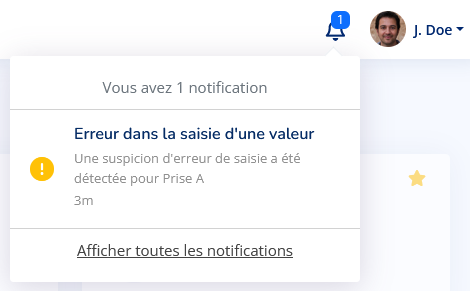
<span style="font-family: Peak; color: rgb(68, 68, 68);">En haut à droite de l’écran, l’utilisateur peut accéder à son profil (nom affiché) pour gérer ses informations personnelles ou se déconnecter, ainsi qu'à ces notifications (cf. Figure 3) .</span>

![BReimage.png](https://wiki-lelabodurable.s3.amazonaws.com/uploads/images/gallery/2025-07/scaled-1680-/breimage.png)

<span style="color: rgb(68, 68, 68);">*Figure 3 : Écran d'accueil : profil d'utilisateur et notifications*</span>

<span style="font-family: Peak; color: rgb(68, 68, 68);">La partie notification sera abordée dans un chapitre dédié.</span>